




 Landscape
Trackin360 Application Operation Guide
Admin 2026-07-15 384
Ⅰ. Download Application
By searching name called “Trackin360” from Google Play or Apple store.
Ⅱ. Register Account
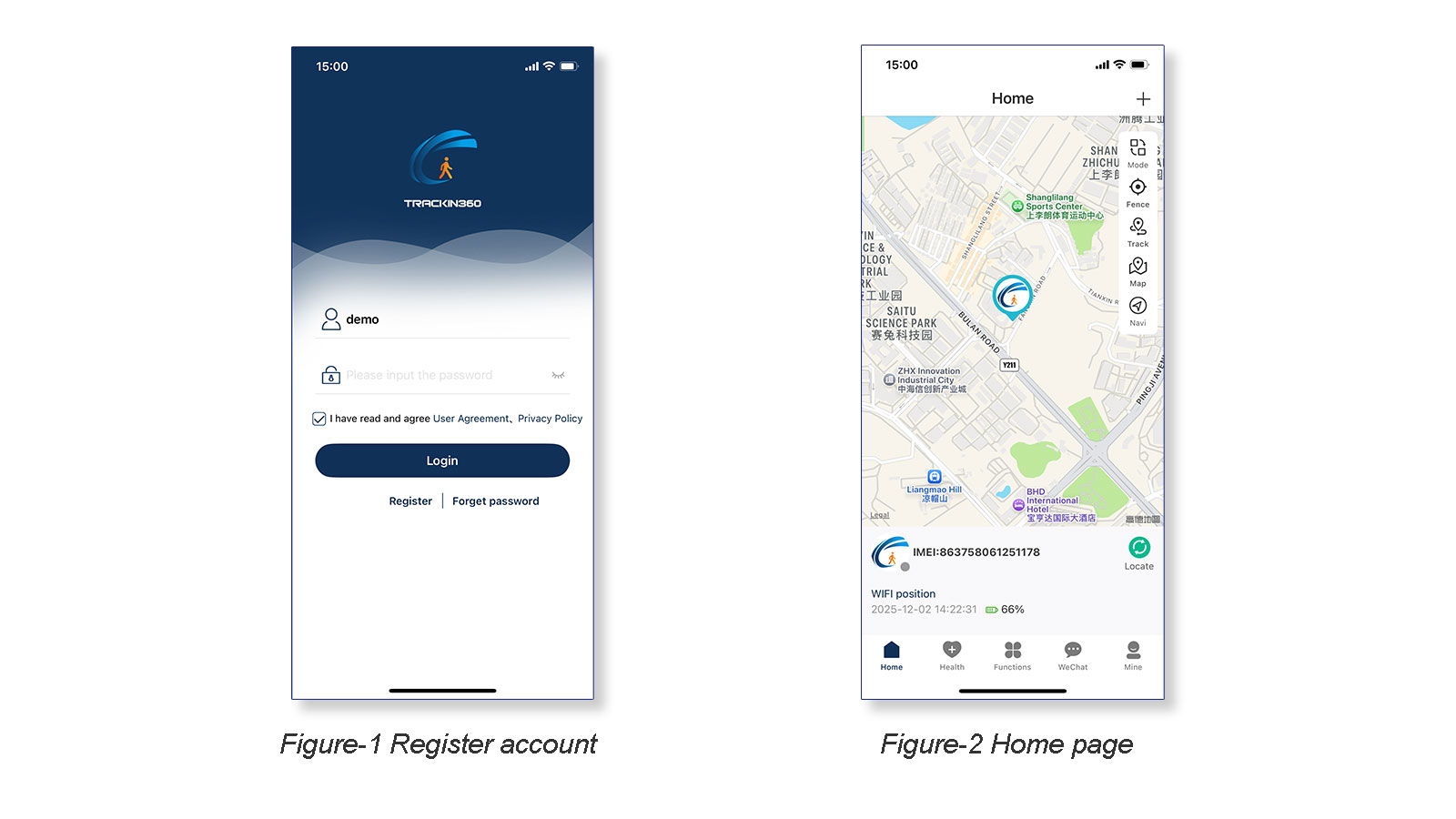
Register account by email or phone when the first time, save the account and password. Check below figure-1 and figure-2.
Ⅲ. Binding devices
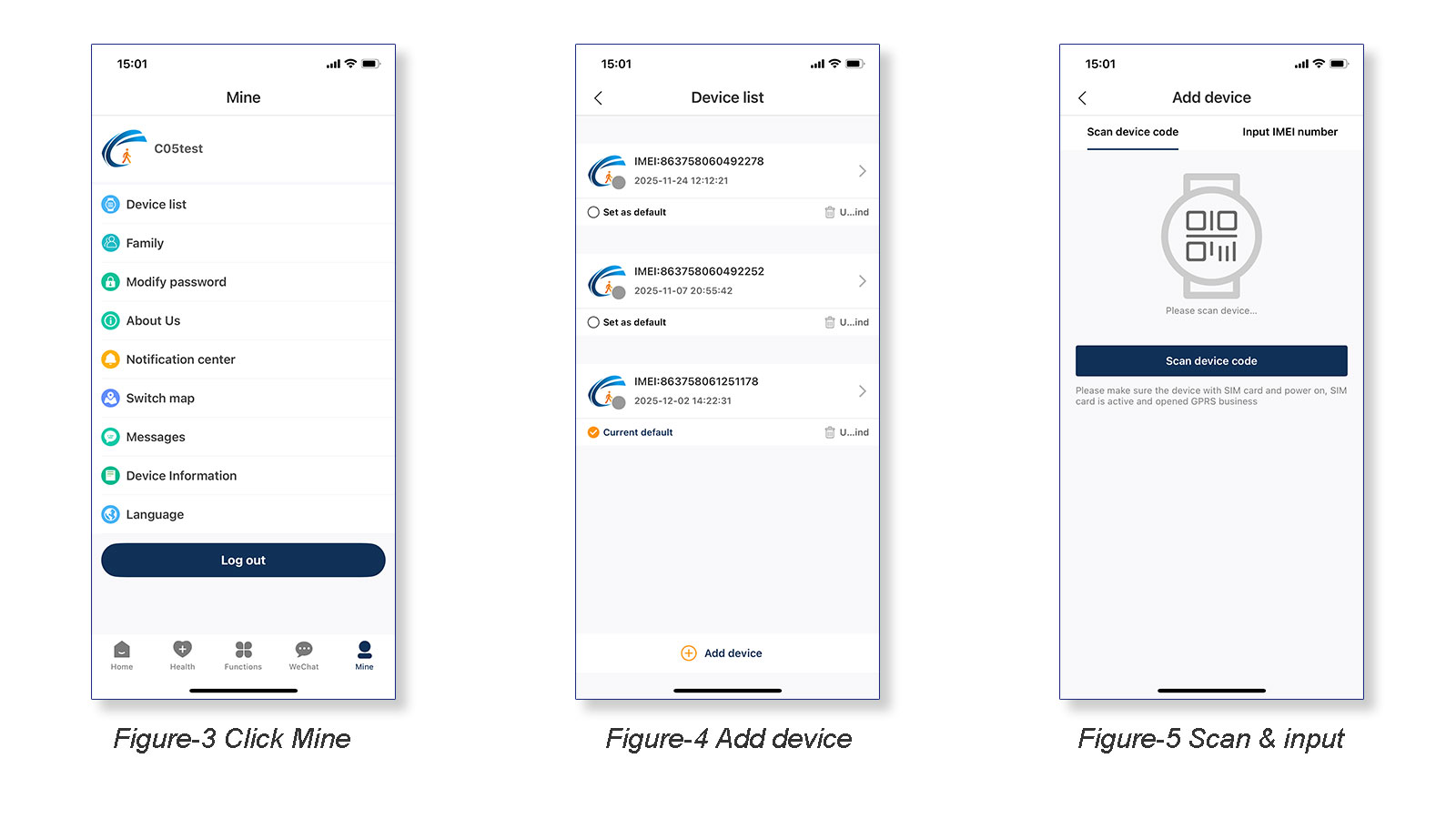
Click “Mine”, then click “Device list” (figure-3), then click “Add device” (figure-4). You can add device by scan device core or Input IMEI number manually (figure-5).
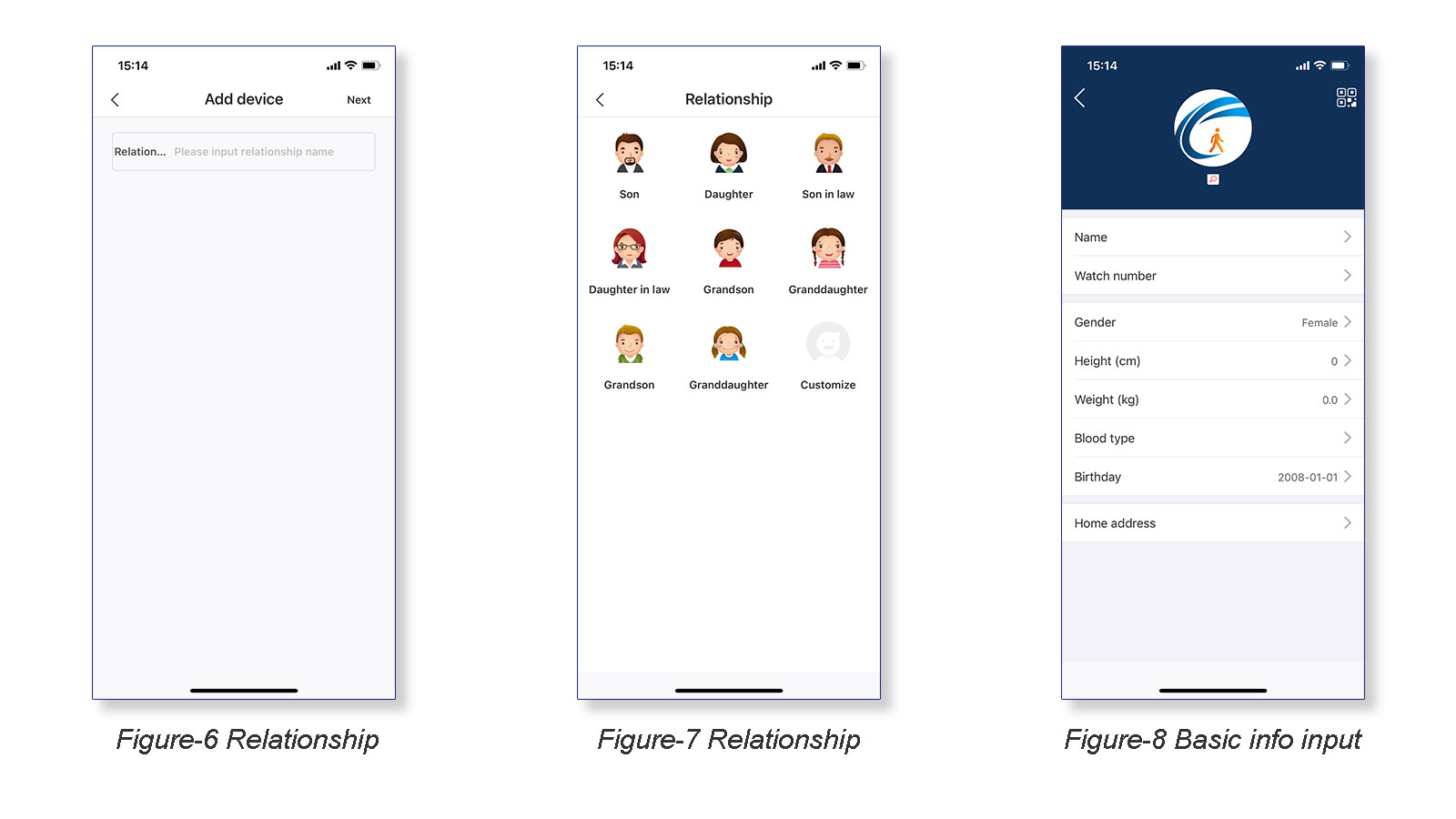
Click “Relationship” select the role and relationship (figure-6 to figure 7), then input the wearer basic information such as nickname, watch number, height, etc. (figure-8)
Ⅳ. Main Operation
4.1 Home page
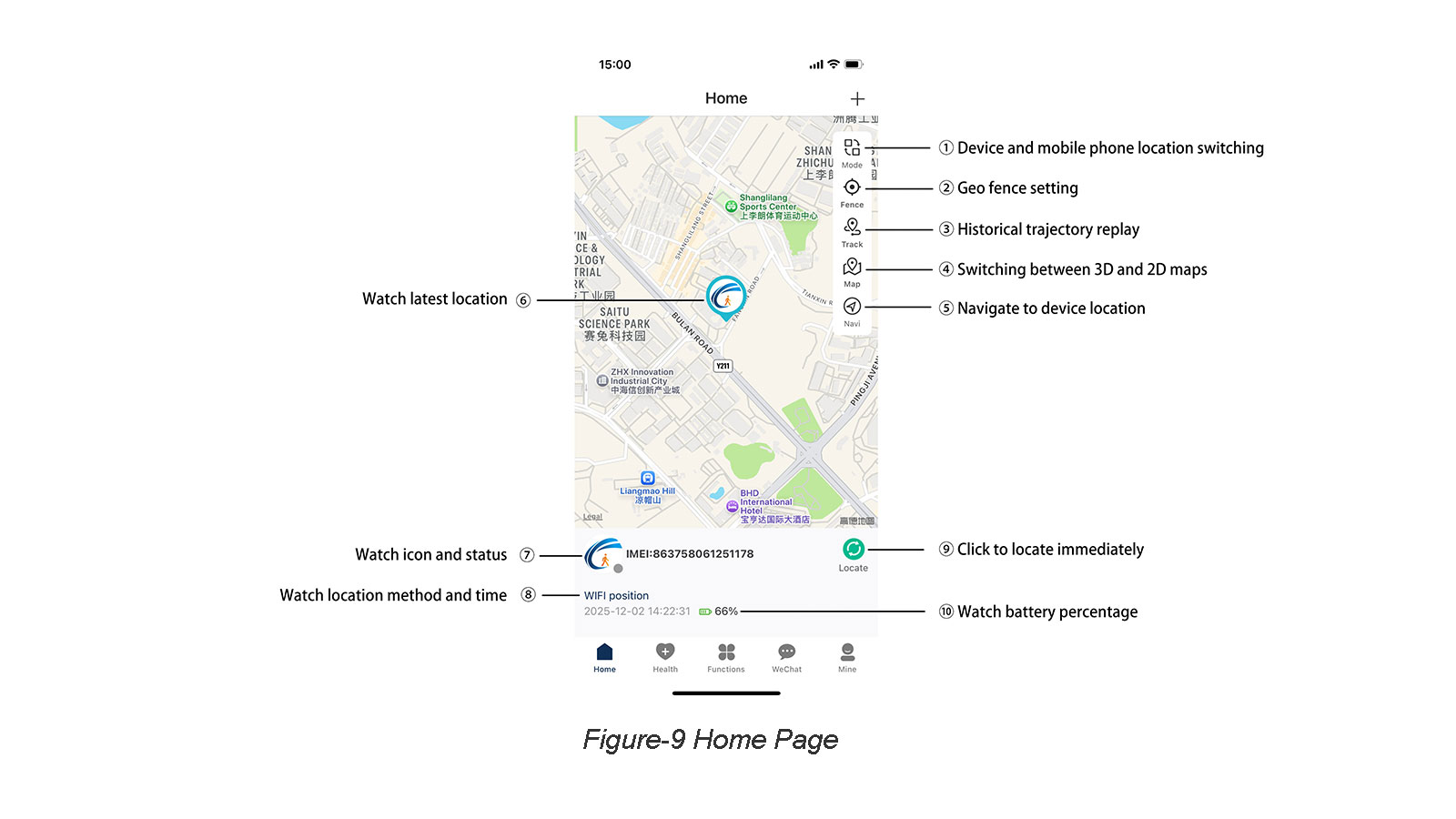
Note:
① The dot color green means offline, green means online.
② Outdoor GPS, LBS and Wi-Fi location, indoor LBS or Wi-Fi location only.
③ It takes around 10~45 seconds to search the newest location after click.
4.2 Geo-fence setting
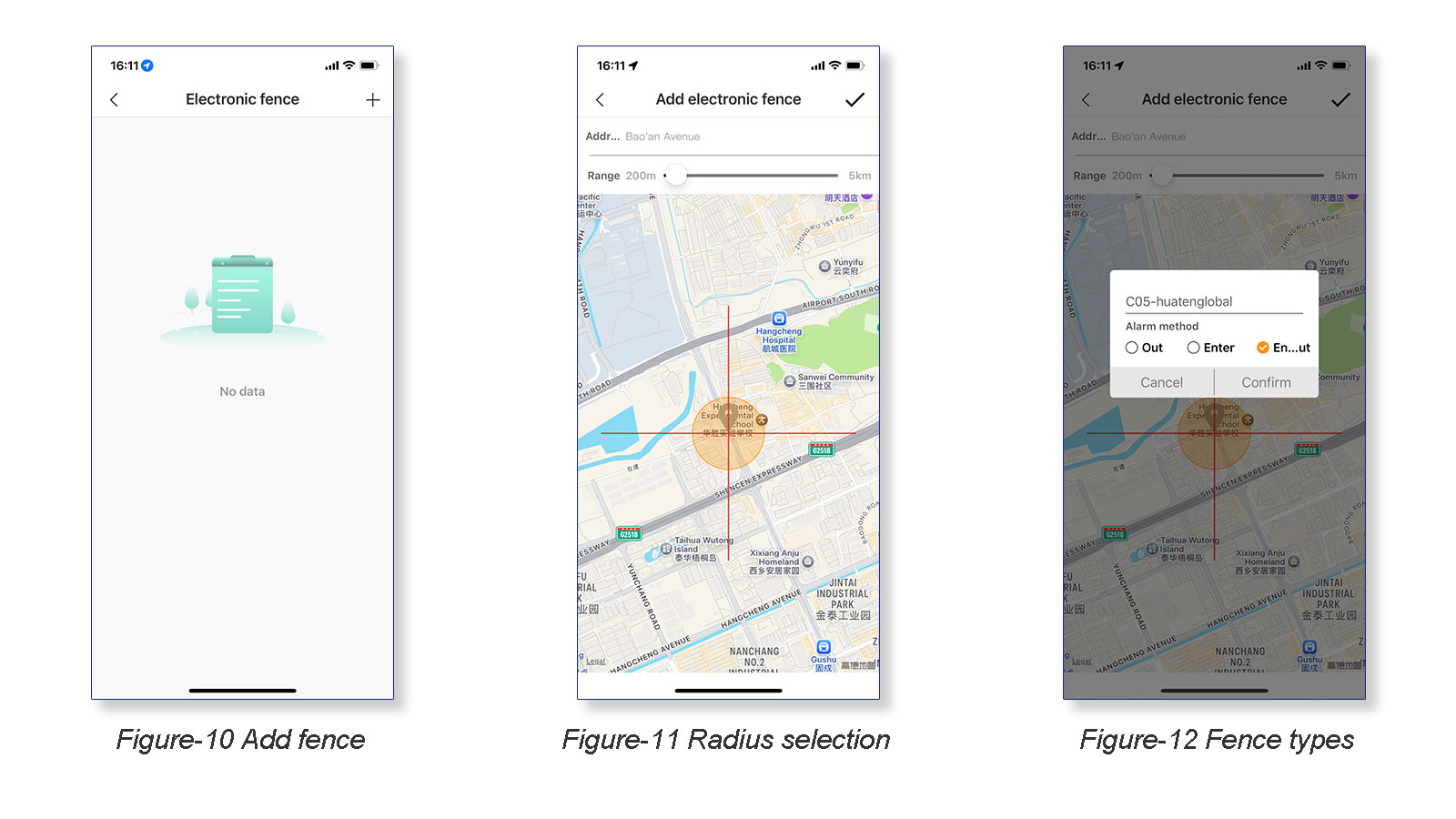
Click “Fence” on the home page, enter Geo-fence setting page.
Click top right corner “+“ (figure-10), select the location and radius of the electronic fence (figure-11), then click “✔” on the top right corner, confirm the fencing ways (enter, out and enter/out 3 types) (figure-12).
4.3 Historical trajectory replay
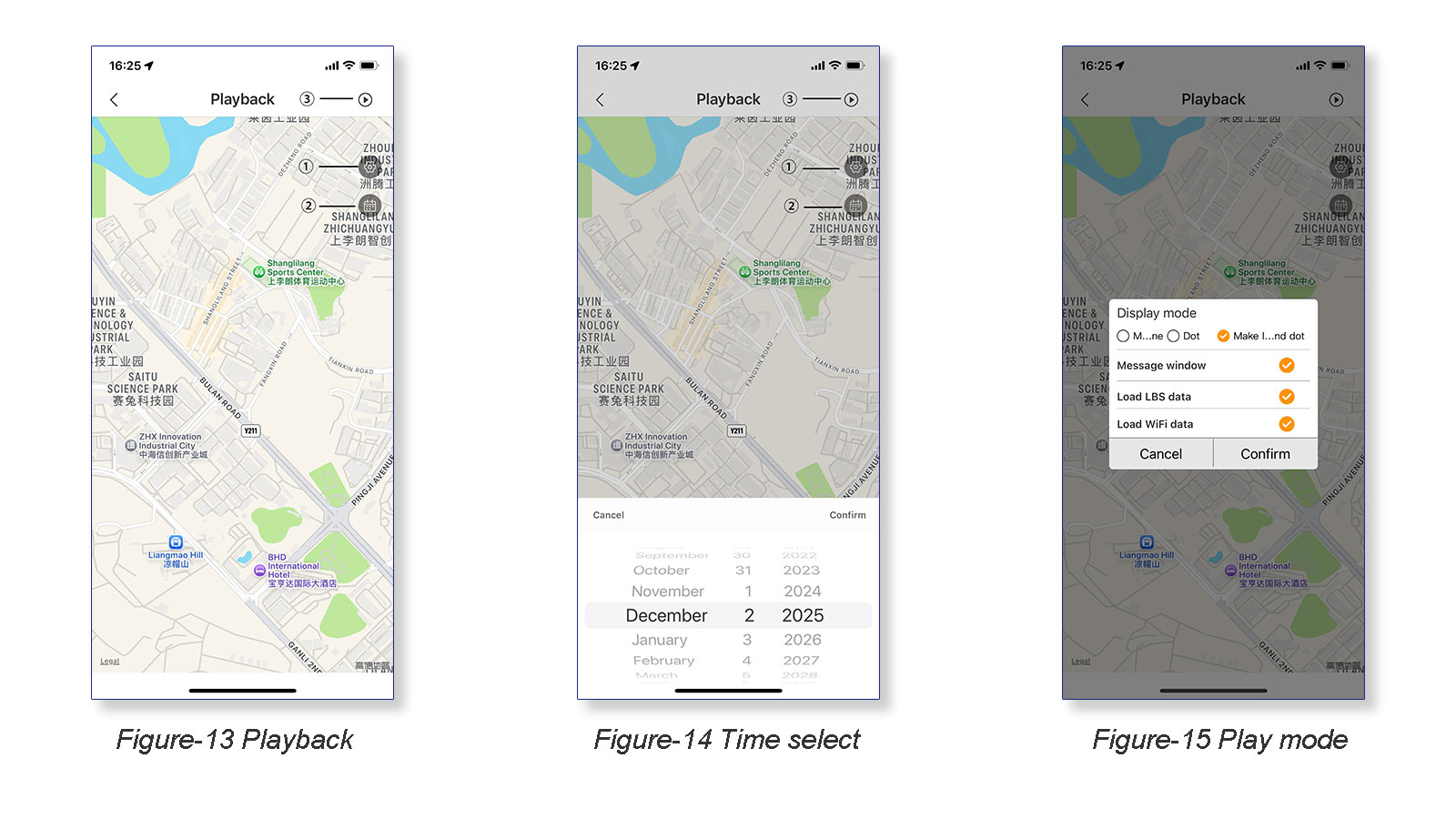
Click “Track” on the home page, enter Historical trajectory playback page. (figure-13). Click ① to select the playback time (figure-14), Click ② to select the display mode (figure-15), then click ③ to playback.
Ⅴ. Health Monitoring
In this section, you can monitoring the wearer heart rate, blood temperature, blood oxygen pressure, pedometer health data by click the corresponding button.
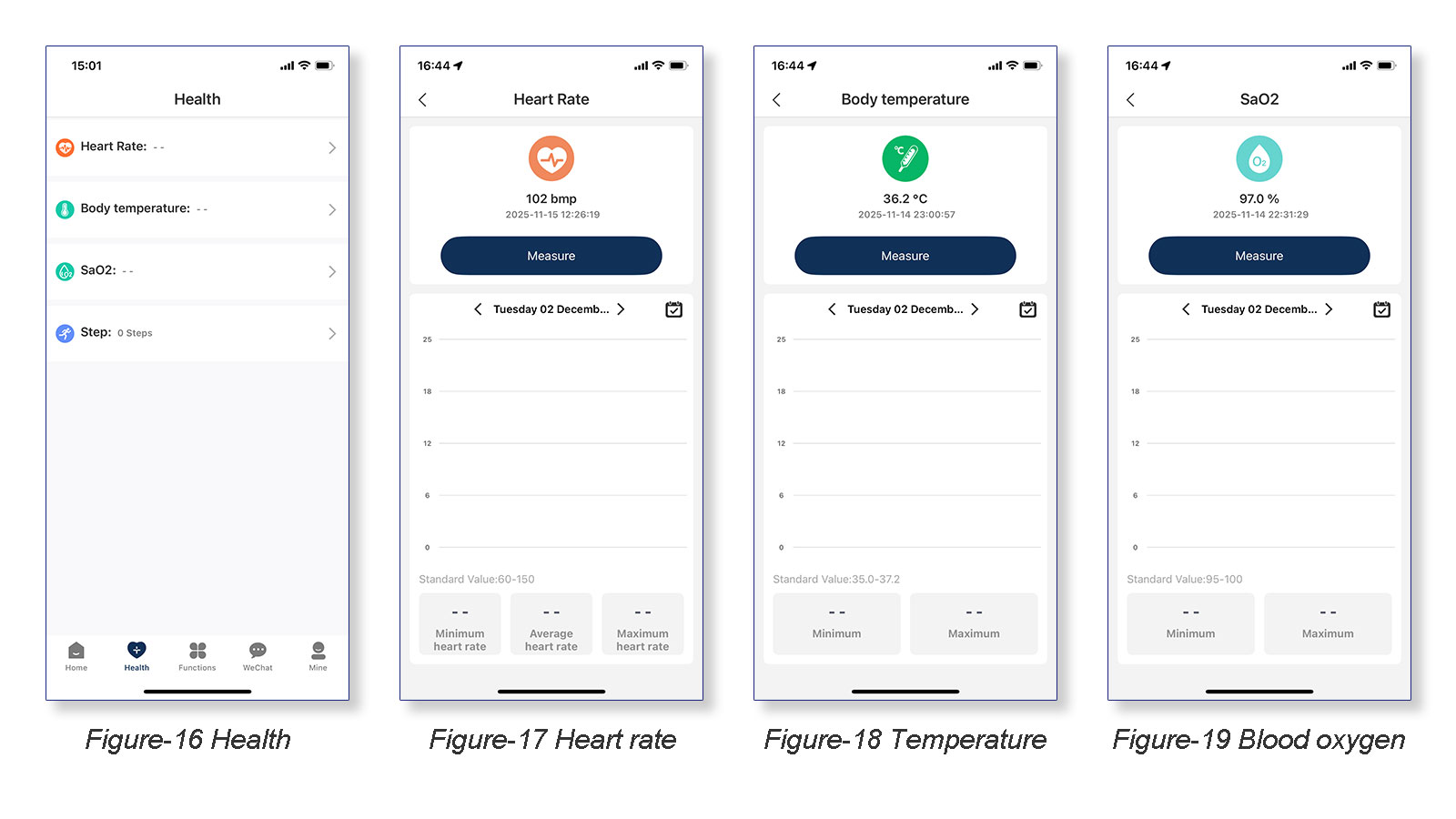
Note: On this page, the wearer needs to issue the command to start measurement, for timed measurements, the test interval needs to be set on the “Function” section.
Ⅵ. Functions
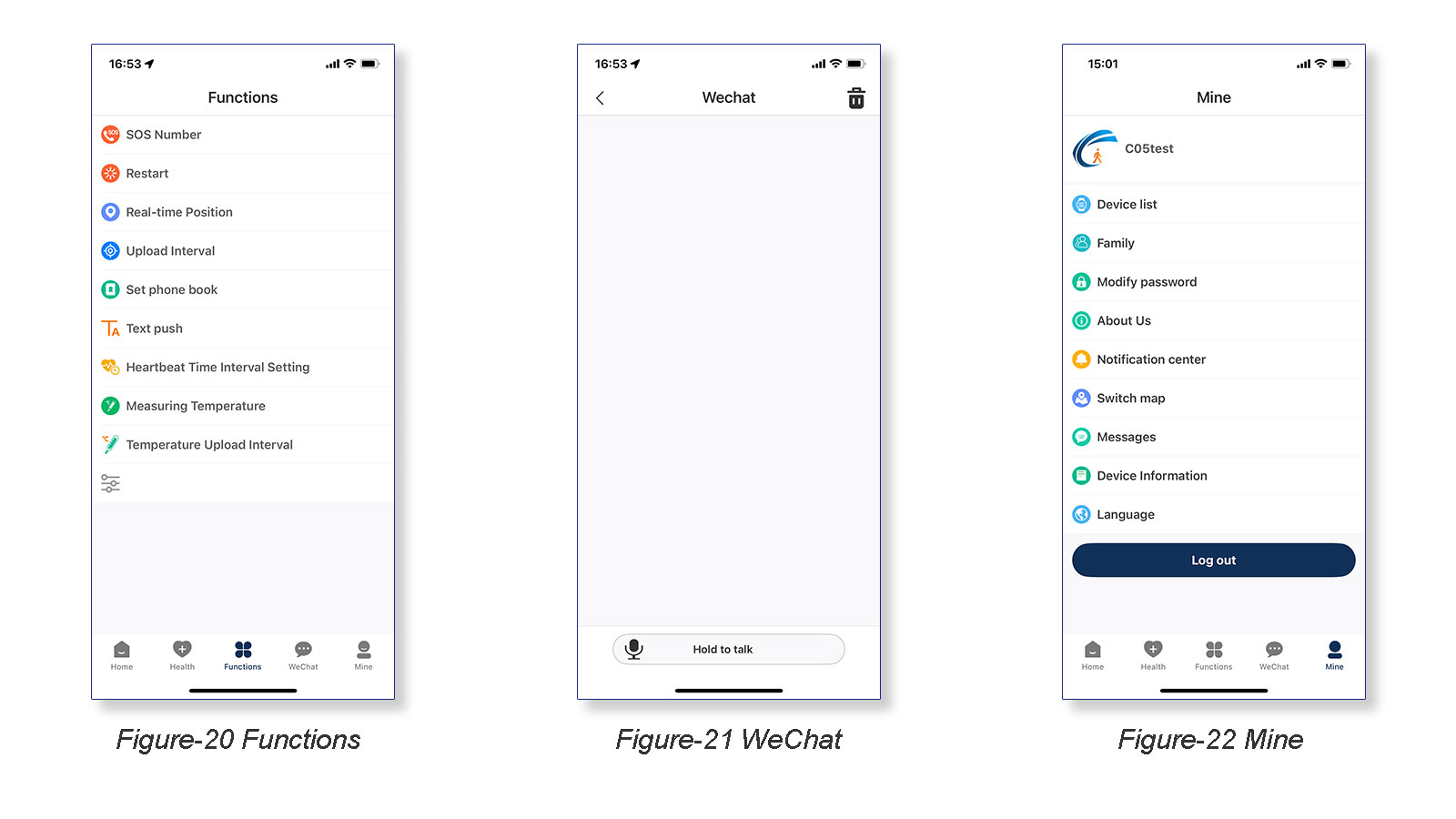
In this section, you can do fucntion setting as you want (figure-20), details check below:
① SOS Number: up to 3 SOS emergency numbers.
② Restart: Click to restart the watch remotely (under online status)
③ Real-time Position: Click to searching signal and update newest position.
④ Upload Interval: From 1~600 minutes available.
⑤ Set Phone Book: Up to 10 numbers available.
⑥ Text Push: Pushing any message from management platform to wearer.
⑦ Heart rate Time Interval Setting: 300-65,535 seconds available.
⑧ Measuring Temperature: Click to start measuring wearer temperature.
⑨ Temperature Upload Interval: 1~12 hours avaiable
Ⅶ. WeChat
In this section, the management member (such as management platform admin, caregiver, familay member, parents, ect.) who monitoring this wearer able to send message to the weraer and other monitoring members. Check on (figure-21).
Ⅷ. Mine
In this section, you can do some setting as you want (figure-22), details check below:
① Profile: click profile icon to change avtor, name, email and phone number.
② Device list: click to check, bind and unbind devices.
③ Modify Password: change password.
④ About US: About Trackin360 App.
⑤ Notification Center: Set the notification methods sounds or non disturb.
⑥ Switch Map: Google map and other maps switch.
⑦ Message: Check message and offline, battery low, lock and tamper alarms.
⑧ Device information: Wearer basic information.
⑨ Languages: Select languages of application.
Ⅸ. Troubleshooting
7.1 Workging logic digram
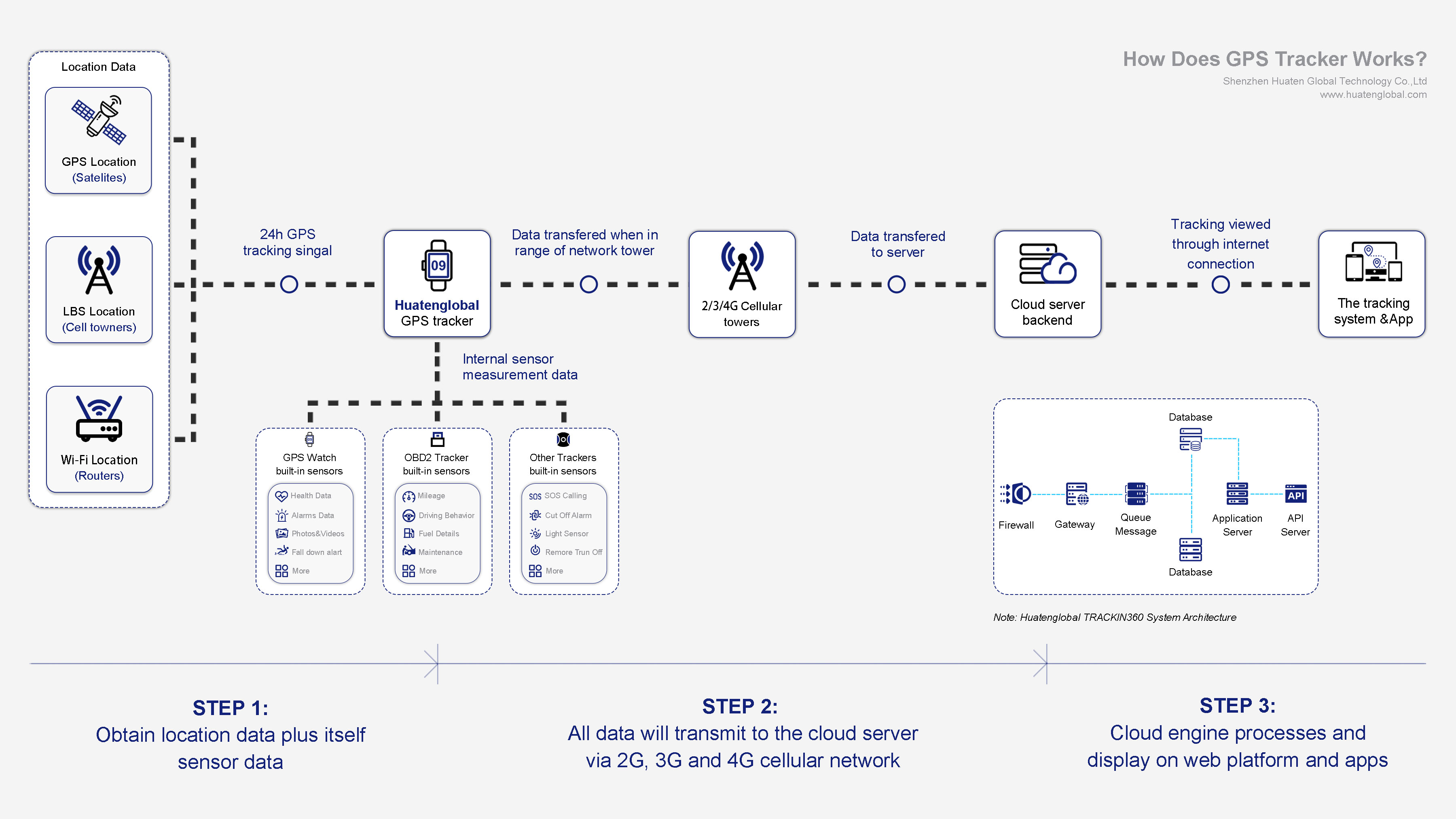
Before troubleshooting, you need to have a basic understanding on How Does GPS Works, for all 4G cellular-based IoT device, the basic working logic are below 3 steps:
Step 1: Obtain location from satellites, base stations and Wi-Fi routers MAC address
Note: plus device itself sensors data if has
Step 2: Transmit safe and health information to cloud server by 4G network
Step 3: Display on web management platform and apps.
7.2 Troubleshooting details
After above diagrams clarify, you just need to check 3 sections
Is the device not has GPS, LBS or Wi-Fi location?
Is the device get connect successfully with server?
Is the platform and apps display data correctly?
| No. | Error symptoms | Problem occur | Details | Solution |
| 1 | Device indicator showing not has network | Network register failed | Check if frequency bands compliance | Change other telecoms operator SIM card |
| Check if SIM card insert correctly | Pull out and re-insert | |||
| Check if SIM card has balance | Top-up | |||
| Check if APN set correctly | Set correct APN | |||
| 2 | Device indicator showing not has location | Not obtain location signal | Check if not have locaton at all | Restart device |
| Check if not have accurate location | Indoor not has GPS but only Wi-Fi or LBS location | |||
| Check if the location delay | Network latching issue | |||
| 3 | Location not accurate (error >10 meters) | Not GPS location method | LBS locaton | LBS accurate from 100m to 2km are normal |
| Wi-Fi location | accurate from 10m to 50m are normal | |||
| 4 | Call device but can not get through | - | SIM card not support calling feature | Change SIM card |
| - | Set no-disturb mode | Close no-disturb mode | ||
| - | Call-in number not in whitelist | Put in whitelist | ||
| 5 | Web platform or app not show any data | - | Device not set correct server IP/Port | Set correct server IP and Port |
| - | Upload interval | Reset upload interval | ||
| 6 | Device showing offline | - | Device power off | charing |
| - | Device fall into sleep mode | shake it or move it |
Please contact with us if there are any more question or doubt, thanks.